How to Change the ChatGPT Theme (Colors & Dark Mode)
Updated: July 28, 2026 · 2-minute read
Out of the box, ChatGPT gives you exactly three choices: light, dark, or system. There's no way to change the accent color, deepen the dark mode, swap the font, or apply a theme someone else designed. This guide shows how to get all of that — a genuinely custom ChatGPT theme — in about two minutes.
Step 1 — Install the extension
Add Chroma AI from the Chrome Web Store (it's free), then pin it: click the puzzle-piece icon at the top right of Chrome and pin Chroma AI.
Step 2 — Open the theme editor
Go to chatgpt.com and click the pinned Chroma AI icon. The editor sidebar slides in from the right with everything you need — presets, background, glass effects and fonts.
Step 3 — Pick a color theme
Open the Background color section and choose a preset. Each one is hand-tuned so the background, accent and text colors change together — no clashing colors, no unreadable text:
- Midnight — a deeper, richer dark mode than ChatGPT's built-in one
- Aurora, Ocean, Forest — calm tones for long writing or research sessions
- Sunset, Neon — high-energy palettes for a more expressive workspace
All 12 presets are free. Want to go further? Use custom presets that re-skin ChatGPT entirely — for example a messenger-style or spreadsheet-style layout.
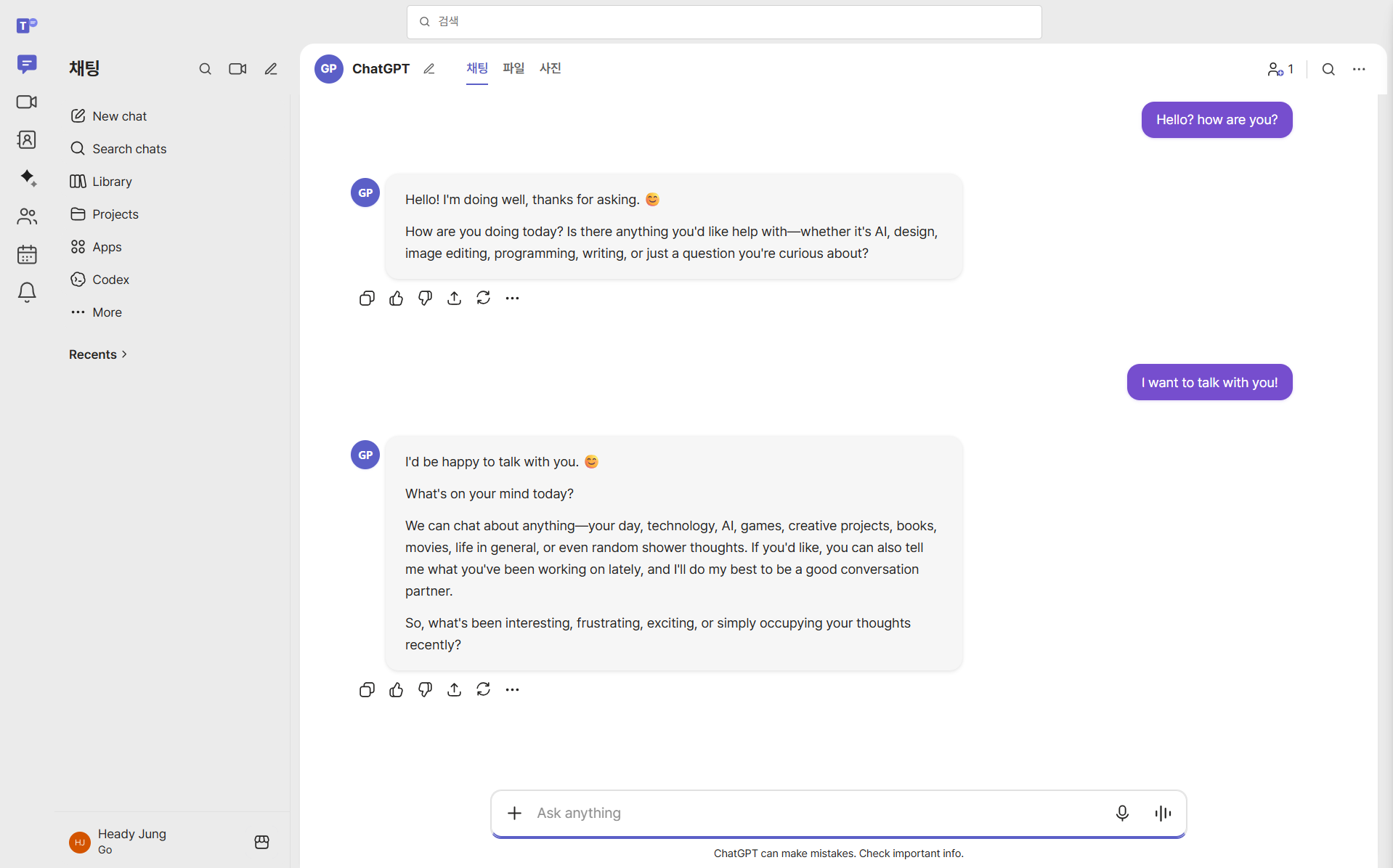
Step 4 — Make it yours
- Glass effect — add a frosted glassmorphism surface, then tune blur and opacity.
- Color overlay — tint the whole interface to unify the look.
- Fonts (Pro) — replace ChatGPT's default typeface with one you actually enjoy reading.
- Background image — combine your theme with a photo or GIF. See the dedicated guide on changing your ChatGPT background.
- Saved presets (Pro) — build a personal library and switch looks in one click.
Custom theme vs. ChatGPT's built-in dark mode
ChatGPT already ships with a dark mode, so it's worth being clear about what a custom theme adds — and when the built-in setting is genuinely the better choice.
The built-in dark mode flips the interface to a single dark grey palette. It's well tested, it never conflicts with anything, and it's the right answer if all you want is "less bright at night." Nothing here replaces it — Chroma AI layers on top of whichever mode you're using.
A custom theme is for when the default palette itself is the problem. Common reasons people move past dark mode:
- Grey fatigue. Dark mode is dark, but it's also completely neutral. A deep navy, warm charcoal or muted green reads as intentional rather than absent.
- Contrast that's too harsh — or too weak. Some people find pure dark backgrounds with bright white text physically tiring. Adjusting background and text tones independently solves what a single toggle can't.
- Telling windows apart. If you keep ChatGPT, Claude and Gemini open at once, three identical dark interfaces are easy to confuse. Giving each a distinct accent color makes tab-switching instant.
- Mood. A calm palette for writing, something sharper for debugging. Small thing, but it changes how a long session feels.
The two work together: set your preferred mode in ChatGPT's own settings, then apply a theme over it. If you later turn the extension off, ChatGPT returns to exactly the appearance it had before — nothing is permanently modified.
Picking colors that hold up over a long session
Choosing a palette is easy; choosing one you still like after eight hours is harder. A few rules that tend to survive real use:
- Keep the background quiet and the accent loud. Your background occupies the whole screen, so it should be low-saturation. Save the vivid color for accents — buttons, links, highlights — where it carries meaning instead of just noise.
- Don't max out contrast. Pure white text on pure black is sharper than the eye actually wants for hours of reading. A slightly softened pair (off-white on very dark grey/navy) is easier to stay with.
- Respect the code blocks. If you paste a lot of code, check a code-heavy response before committing. Syntax highlighting assumes a certain background range; extremes on either end can wash it out.
- One accent, not three. Multiple strong colors compete for attention. A single accent plus neutrals almost always looks more considered.
- Consider your room. A theme chosen at midnight often feels wrong in daylight. If you work in both, either pick something middle-of-the-road or save two presets and switch.
The 12 built-in presets are already balanced this way, so they're a good starting point even if you plan to customize — pick the closest one, then adjust from there rather than building from scratch.
Troubleshooting
The theme didn't apply.
Refresh the ChatGPT tab (Ctrl + R / ⌘ + R). Tabs that were open before you installed the extension need one reload before themes take effect.
Some buttons or panels still look like the old colors.
ChatGPT updates its interface regularly, and occasionally a new element ships before a theme adapts to it. Updating the extension to the latest version usually resolves it — and reports help us fix the rest quickly.
My theme applies to ChatGPT but not Claude or Gemini.
That's intended. Each platform keeps its own settings, so a background you set for one never leaks into another. Open the sidebar on each site to style it.
How do I go back to the default look?
Use "Disable theme" in the sidebar, or turn the extension off. ChatGPT returns to its normal appearance immediately — nothing about your account or conversations is changed.
Use a theme someone else made
You don't have to design from scratch. The Theme Gallery is full of themes created by other users — browse, preview, and apply any of them to ChatGPT instantly. Themes with animated backgrounds carry a MOTION badge.
The built-in theme setting (no install needed)
Before adding anything to your browser, use what ChatGPT already ships. Open your profile menu, go to Settings → General, and set Theme to Light, Dark, or System. "System" follows your operating system's appearance setting, so it flips automatically if you have macOS or Windows scheduled to switch at sunset.
This is the most reliable option that exists: it is built by OpenAI, it survives every redesign, and it costs nothing in memory or page-load time. If a plain dark interface is all you wanted, you are already done.
Where the built-in setting stops
The native control gives you exactly two palettes. It cannot change the accent colour, the font, the message bubble shape, or the background, and it offers no per-site variation — your dark mode on ChatGPT is the same dark mode everyone else sees. Anything beyond light-versus-dark requires either a user stylesheet you maintain yourself or a theming extension.
A note on browser-level forced dark modes
Chromium browsers include an experimental auto-dark-mode flag that inverts sites that have no dark theme. It is worth knowing about and generally worth avoiding on ChatGPT: because ChatGPT already has a real dark theme, forcing another one on top tends to produce muddy greys, broken image thumbnails, and unreadable code blocks.
Frequently asked questions
Q. Does ChatGPT have custom themes built in?
No — only light, dark and system. Custom colors, backgrounds, fonts and deeper dark modes require a browser extension.
Q. How do I make ChatGPT dark mode darker?
Apply a dark preset like Midnight, then lower opacity and add a color overlay to push it deeper than the built-in dark mode.
Q. Will my theme stay after I close the browser?
Yes. Your settings are saved locally in your browser and reapplied automatically the next time you open ChatGPT.
Give ChatGPT a new look
Free Chrome extension — apply your first theme in one click.
Add to Chrome — Free