How to Change Your Google Gemini Background & Theme
Updated: July 28, 2026 · 2-minute read
Google Gemini doesn't include a background or theme setting — you get light mode, dark mode, and that's it. This guide shows how to set any image, GIF or color theme as your Gemini background in about two minutes, while keeping the text perfectly readable.
Step 1 — Install the extension
Add Chroma AI from the Chrome Web Store, then pin it via the puzzle-piece icon in Chrome's toolbar.
Step 2 — Open Gemini and launch the sidebar
Visit gemini.google.com and click the pinned icon. The editor sidebar slides in from the right. Everything runs locally in your browser — your conversations are never read or transmitted.
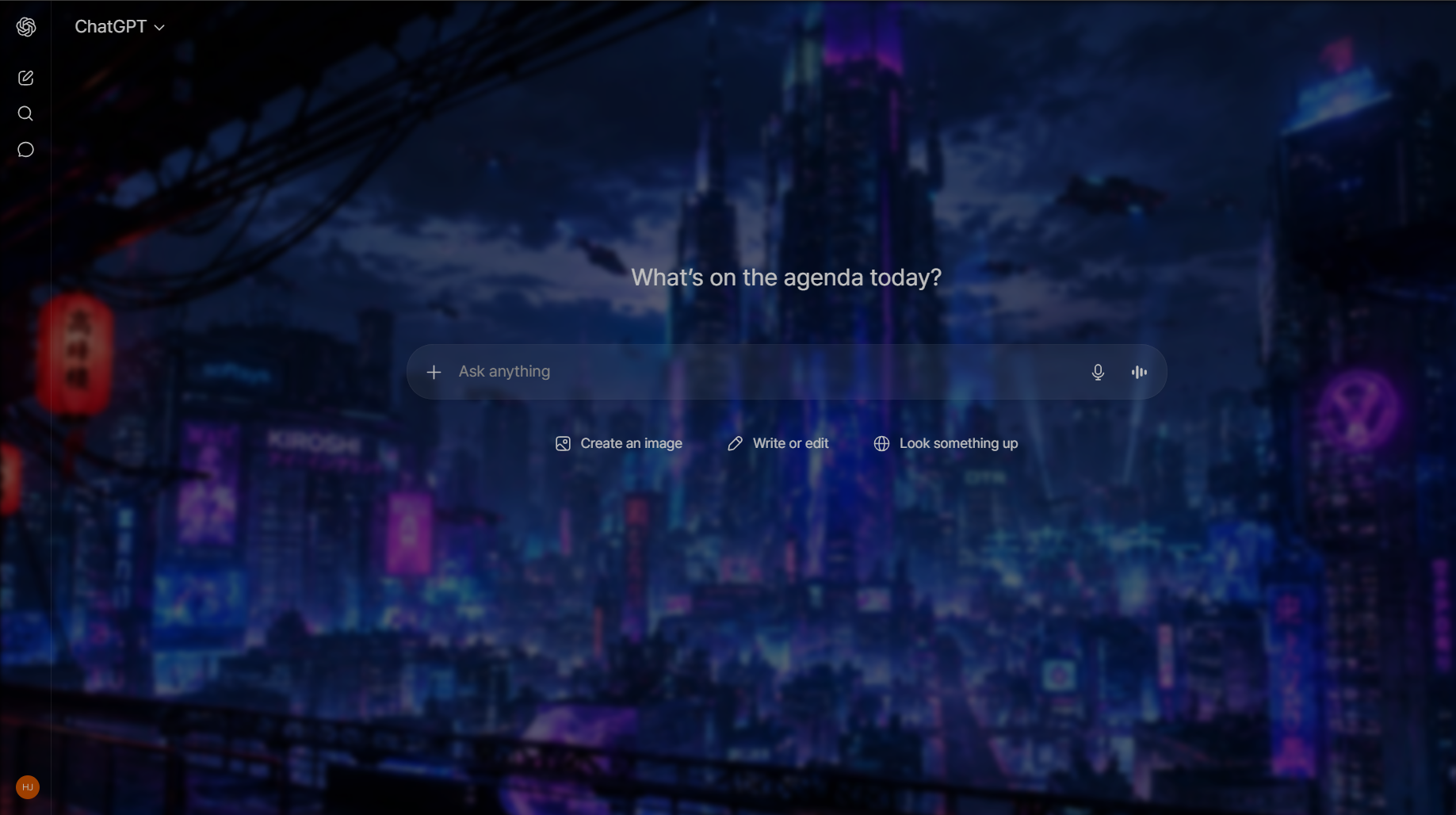
Step 3 — Set your background
- Your own image or GIF — open Media Background and drag & drop a photo, wallpaper or animated GIF. It becomes your Gemini background instantly.
- A color preset — pick from 12 free themes (Midnight, Aurora, Sunset, Ocean, Neon, Forest and more). Background, accent and text colors change together.
- A community theme — browse the Theme Gallery and apply someone else's design in one click.
Step 4 — Keep Gemini readable
Gemini's interface is bright and text-heavy, so the glass layer matters here. Tune these until it feels right:
- Blur — softens the wallpaper behind the chat panel.
- Opacity — how strongly the background shows through.
- Color overlay — a tint that unifies Gemini's panels with your image.
Your theme works in both Gemini light mode and dark mode. You can also resize, zoom and reposition the image so it frames exactly the way you want — and it re-fits automatically when you resize the window.
What's different about theming Gemini
Gemini's interface has a few characteristics worth knowing before you pick a background, because they change which images work well.
- A wide, airy layout. Gemini leaves more open space around the conversation than a dense chat UI does, which means more of your wallpaper is actually visible. Images you'd consider "too subtle" elsewhere often look right here — and busy images become more distracting, not less.
- Light and dark themes both matter. Gemini's own light theme is genuinely bright. If you use it, a dark photo needs a much stronger overlay to keep interface text legible. Pairing a light theme with a light, low-contrast image (or dark theme with a dark image) takes far less tuning.
- Colorful native accents. Gemini uses its own accent colors in places. A background heavy in one strong hue can clash with them, so muted or neutral images tend to sit more comfortably.
- A busy left rail. Your chat list runs down the side. Images whose focal point sits on the far left get partly covered — center or right-weighted compositions survive better.
Everything you set here is stored separately from your ChatGPT and Claude settings, so you can give Gemini a completely different personality without affecting the others.
Tuning blur, opacity and overlay
The three sliders do different jobs, and knowing which to reach for saves a lot of fiddling:
- Blur removes detail. Use it when the image's texture is competing with letterforms. A little goes a long way — the goal is to soften edges, not erase the picture.
- Opacity removes intensity. Use it when the image is the right amount of busy but too strong overall, washing it toward the interface color.
- Color overlay removes disagreement. Use it when the image's colors fight Gemini's own palette. A gentle tint in a single hue pulls everything into one family and is often the difference between "wallpaper stuck behind an app" and "a designed interface."
A reliable starting recipe: moderate blur, opacity around two-thirds, and a very light overlay in whichever color dominates your image. Adjust from there with a real conversation open, not an empty screen.
Troubleshooting
Nothing changed after I picked a background.
Reload the Gemini tab (Ctrl + R / ⌘ + R). A tab that was already open when you installed the extension needs one refresh.
Interface text is hard to read now.
Increase blur first, then opacity, and add a light color overlay. If you're on Gemini's light theme with a dark image (or the reverse), switching to a background that matches your theme's brightness will take much less tuning.
My ChatGPT background showed up on Gemini.
It shouldn't — settings are stored per platform. If you see this, reload the tab; each site reads only its own configuration.
Gemini feels slower with an animated background.
Animated GIFs combined with heavy blur are the most demanding setup. Switching to a static image or reducing blur restores smoothness immediately.
What Gemini offers natively
Gemini includes its own light and dark appearance setting, reachable from the settings menu in the app. As with ChatGPT, this is the most robust option available: it is maintained by the vendor, it never breaks on a redesign, and it adds nothing to page-load time.
Because Gemini is tied to your Google account, the appearance choice follows you across devices where you are signed in — which is genuinely convenient and is not something a browser extension can replicate, since extensions are installed per-browser.
The limits are the same as everywhere else
You get two palettes and no control over background imagery, accent colour, or typography. Anything past that means injecting your own CSS, with the same fragility trade-off: Gemini's markup is generated, class names change between deploys, and a stylesheet written today may quietly stop applying next month.
Before you install anything, check what it can read
A theming tool for Gemini needs permission to run on the Gemini domain. That is a meaningful permission, because the same access that lets an extension restyle a page also lets it read the page. Open the extension's listing, look at the permissions it requests and the data-use disclosures, and prefer tools that operate only on the domains they actually need.
Frequently asked questions
Q. Can you change the background in Google Gemini?
Not natively — Gemini has no background setting. A browser extension like Chroma AI adds custom backgrounds, colors and effects.
Q. Does it work with Gemini dark mode?
Yes. Your theme layers over both light and dark mode, and opacity/overlay let you match either one.
Q. Do my ChatGPT and Gemini themes stay separate?
Yes. Each platform keeps its own saved look, so you can run a calm theme on Gemini and something bolder on ChatGPT.
Give Gemini a background
Free Chrome extension — set it up in under two minutes.
Add to Chrome — Free